Tuesday, 20 December 2016

Client Object Model code to find List item level permissions


Client Object Model Code to find list items that has unique permissions


using System;
using System.Collections.Generic;
using System.Linq;
using System.Text;
using System.Threading.Tasks;
using Microsoft.SharePoint.Client;


namespace CSOMTestUserAccessItems
{
    class Program
    {
        static void Main(string[] args)
        {
            ClientContext ctx = new ClientContext("http://spdev.sp2013.com/");
            ctx.AuthenticationMode = ClientAuthenticationMode.Default;
            ctx.Credentials = System.Net.CredentialCache.DefaultNetworkCredentials;
            Web web = ctx.Web;
            ctx.Load(web, w => w.Title);
            ctx.Load(web, w => w.CurrentUser.LoginName);
            List list = ctx.Web.Lists.GetByTitle("Products");
            CamlQuery qry = new CamlQuery();
            qry.ViewXml = "<view></view>";
            ListItemCollection Listitems = list.GetItems(qry);
            ctx.Load(Listitems);
            ctx.Load(Listitems, li => li.Include(i => i.HasUniqueRoleAssignments));
            ctx.ExecuteQuery();
            var user = web.CurrentUser.LoginName;
            foreach (ListItem item in Listitems)
            {
                Console.WriteLine();
                if ((item.HasUniqueRoleAssignments))
                {

                    ClientResult<BasePermissions> permissions = item.GetUserEffectivePermissions(@"i:0#.w|sp2013\manjunath.soreddy");
                    ctx.ExecuteQuery();
                    var hasPermissions = permissions.Value.Has(PermissionKind.ViewListItems);
                    if (hasPermissions)
                    {
                        Console.WriteLine(item["Title"] + " ...." + item["Price"] + "....." + item["Quantity"]);
                    }
                }


            }
            Console.Read();
        }
    }

}

Thursday, 18 August 2016

Restore-SPSite : The operation that you are attempting to perform cannot be completed successfully


Restore-SPSite -Identity "http://softwaredev.sp2013.com/" -Force  -Path "E:\BACKUP\gcs-Prodsitecoll-07132016.bak" -Confirm:$false 


Restore-SPSite : The operation that you are attempting to perform cannot be completed successfully.  No content  databases in the web application were available to store your site collection.  The existing content databases may  have reached the maximum number of site collections, or be set to read-only, or be offline, or may already contain  a copy of this site collection.  


Solution : 


specify the parameters DatabaseServer and DatabaseName details which will fix the issue

Restore-SPSite -Identity "http://softwaredev.sp2013.com/" -Force  -Path "E:\BACKUP\gcs-Prodsitecoll-07132016.bak" -Confirm:$false  -DatabaseServer "inblrinvapp02dp" -DatabaseName "WSS_Content_softwaresupportdev"


Monday, 18 July 2016

AddAttachment CSOM SharePoint 2010

AddAttachment to Sharepoint 2010 List item CSOM


Below is the code  to add an attachment to sharePoint 2010 list item through CSOM with WebReference, 

using System;
using System.Collections.Generic;
using System.Linq;
using System.Text;
using System.Threading.Tasks;
using Microsoft.SharePoint.Client;
using System.IO;
using System.Data;
using System.Net;

namespace CSOMFileUpload
{
    class Program
    {
        static void Main(string[] args)
        {
           
            const string listName = "Test";                   
            var credentials = new NetworkCredential("manjunath.soreddy", "MS", "dev");
            var clientContext = new ClientContext("https://spdev.com/TestSite/");
            clientContext.Credentials = credentials;
            var list = clientContext.Web.Lists.GetByTitle(listName);
            var itemCreateInfo = new ListItemCreationInformation();
            var newItem = list.AddItem(itemCreateInfo);
            newItem["Title"] = "Soreddy Client API";
            newItem.Update();
            clientContext.ExecuteQuery();
            clientContext.Load(newItem);
            clientContext.ExecuteQuery();          
            string path = @"c:\OutPutLog.txt";
           
//Here Uploadfile.inv is a Webreference which we have added to SharePoint 2010 Site from Visual Studio to add follow below steps
// Solution Explorer---> Add Service Reference ---> Advanced-> Add Web Reference --> URL

           var refin = new Uploadfile.inv.Lists();
           refin.Credentials = CredentialCache.DefaultCredentials;
           refin.Url = "https://spdev.com/TestSite/");
/_vti_bin/Lists.asmx";
           refin.AddAttachment(listName, newItem["ID"].ToString(), Path.GetFileName(path),
                                      System.IO.File.ReadAllBytes(path));
        }
    }
}


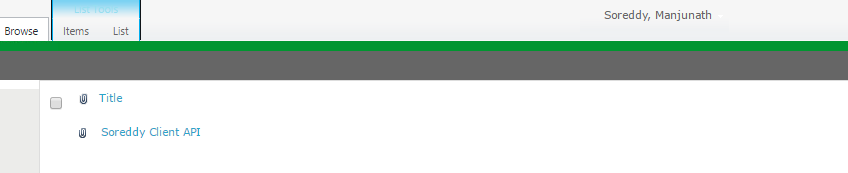
OutPut:


Load All UserProfile properties CSOM


Load All the UserProfile properties of a Logged in User 


Below code will load all user profile properties of a current logged in user in CSOM


using System;
using System.Collections.Generic;
using System.Linq;
using System.Text;
using System.Threading.Tasks;
using Microsoft.SharePoint.Client;
using Microsoft.SharePoint.Client.UserProfiles;
using System.Net;


namespace UserProfilePropertiesCSOM
{
    class Program
    {
        static void Main(string[] args)
        {

            ClientContext ctx = new ClientContext("http://Sharepointdevsite:3636/");
            var cuser = ctx.Web.CurrentUser;
            ctx.Load(cuser); //Load the Current Logged User
            ctx.ExecuteQuery();       
            PeopleManager peopleManager = new PeopleManager(ctx);        
            PersonProperties userProperites = peopleManager.GetPropertiesFor(cuser.LoginName);
            ctx.Load(userProperites, p => p.AccountName, p =>
            p.UserProfileProperties);
            ctx.ExecuteQuery();
            foreach (var property in userProperites.UserProfileProperties)
            {
                Console.WriteLine(string.Format("{0}: {1}",
                property.Key.ToString(), property.Value.ToString()));
            }
            Console.ReadKey(false);

        }
    }
}

Ouput:


Monday, 4 July 2016

Unknown SharePoint version: 16.0 Parameter name: version 0 0

Error while deploying app to SharePoint 2013 from Visual Studio


Solution :


Go to Project -> Project Properties from Visual Studio

 i.e In the Tools menu

Debub -> yourprojectName Properties  ( In mycase its TestApp Properties)


In SharePoint Tab -> Change the Version from SharePoint online to SharePoint 2013 and Click OK

Try to Rebuild and deploy the solution hope it should fix


Tuesday, 7 June 2016

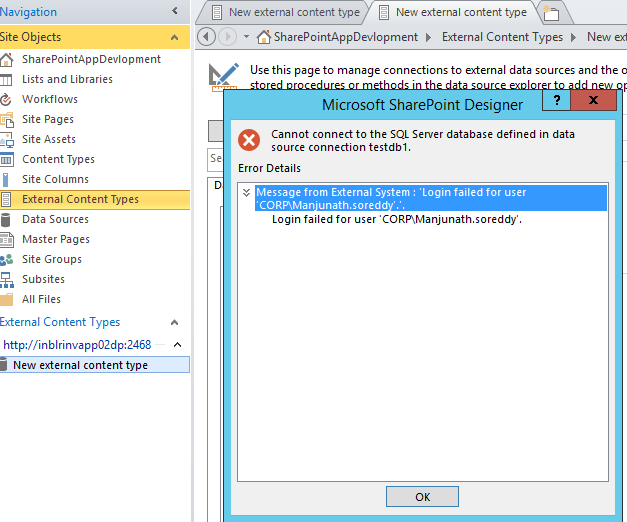
Message from External System Login Failed for user ....


Message from External System Login Failed for user ....


When we are trying to create an External Content type with SharePoint Designer we will face an issue some thing like Message from External System Login Failed for user ... In order to fix it follow the below steps,.


Solution :

Click on Add Connection - > Select  second option Connect with impersonated Windows Identity

and provide Secure Store Application Id which was created in Central Admin to connect external system and Click on Ok button


select the option as per your requirment by Right clicking on Students table


Access denied by Business Data Connectivity.


Access denied by business data connectivity when creating external content type


Solution :


Go to Central Administration -> Manage Service Applications -> Business Connectivity Service application


Select the External Content type which you have created, and click on Set Object Permissions button in the ribbon,

In my case its NewExternal content type.


Type EveryOne and click on Add button and Select Execute Check box and Click on OK Button


That's set..., you will be able to see the result , if still getting same error select Edit checkbox and try it.