Tuesday, 7 June 2016

Access denied by Business Data Connectivity.


Access denied by business data connectivity when creating external content type


Solution :


Go to Central Administration -> Manage Service Applications -> Business Connectivity Service application


Select the External Content type which you have created, and click on Set Object Permissions button in the ribbon,

In my case its NewExternal content type.


Type EveryOne and click on Add button and Select Execute Check box and Click on OK Button


That's set..., you will be able to see the result , if still getting same error select Edit checkbox and try it.


Tuesday, 31 May 2016

The Secure Store Service application Secure Store Service Application is not accessible. The full exception text is:

Secure Store Service is not accessible

The Secure Store Service application Secure Store Service Application is not accessible. The full exception text is: The HTTP service located at https://........./SecureStoreService.svc/https is unavailable.  This could be because the service is too busy or because no endpoint was found listening at the specified address. Please ensure that the address is correct and try accessing the service again later.


Resolution:

1. Check AppPool Account which secure store service is running is not stopped.

Go to Inetmgr -> Find the application pool for Secure store Service  


If Stopped - start the AppPool


2.  Check if Secure store service is not started,  if not go and Start as below.

Central Admin - > Application Management -> Manage Services on the Server 

Secure Store Service -> Start


Hope this will fix the issue , 

A Network-related or instance-specific error occurred while establishing connection to SQL Server,

A Network-related or instance-specific error occurred while establishing connection to SQL Server, The Server was not found or was not accessible. verify that instance name is correct and that SQL Server is configured to allow remote connections.


Solution :


Monday, 30 May 2016

Verification of prerequisites for Domain Controller promotion failed. The local Administrator account becomes the domain Administrator account when you create a new domain. The new domain cannot be created because the local Administrator account password does not meet requirements. Currently, a password is not required for the local Administrator account. We recommend that you use the net user command-line tool with the /passwordreq:yes option to require a password for this account before you create the new domain; otherwise, a password will not be required for the domain Administrator account.

Error While Setting Active Directory:


Verification of prerequisites for Domain Controller promotion failed. The local Administrator account becomes the domain Administrator account when you create a new domain. The new domain cannot be created because the local Administrator account password does not meet requirements. Currently, a password is not required for the local Administrator account. 

We recommend that you use the net user command-line tool with the /passwordreq:yes option to require a password for this account before you create the new domain; otherwise, a password will not be required for the domain Administrator account.


Resolution:


Change SQL Server Authentication Mode


  1. In SQL Server Management Studio Object Explorer, right-click the server, and then click Properties.
  2. On the Security page, under Server authentication, select the new server authentication mode, and then click OK.
  3. In the SQL Server Management Studio dialog box, click OK to acknowledge the requirement to restart SQL Server.
  4. In Object Explorer, right-click your server, and then click Restart. If SQL Server Agent is running, it must also be restarted.
 Change Security Authentication Mode


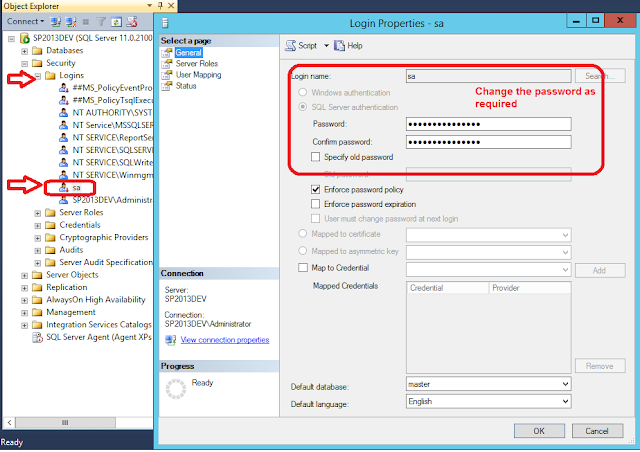
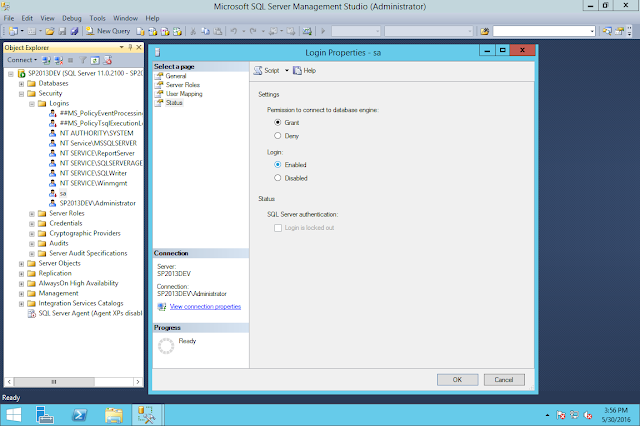
Enabling login for sa account

  1. In Object Explorer, expand Security, expand Logins, right-click sa, and then click Properties.
  2. On the General page, you might have to create and confirm a password for the login.

On the Status page, in the Login section, click Enabled, and then click OK.


Sunday, 14 February 2016

Create Publishing Page using Powershell/ Create Pages from csv file


Below is the code which will create the Publishing page and added to Pages library . Here i am using Blankwebpart page layout and reading pageurls from text file and creating pages.

cls
asnp "*sh*"
$web=Get-SPWeb -Identity http://SP2013dev:3636/
$pubweb=[Microsoft.SharePoint.Publishing.PublishingWeb]::GetPublishingWeb($web)
$file=Import-Csv -LiteralPath E:\MS\temp\pageurls.txt
$pageLayout=$pubweb.GetAvailablePageLayouts()|?{$_.Name -eq "BlankWebPartPage.aspx"}
foreach($page in $file.PageUrls)
{
$newPage=$pubweb.AddPublishingPage($page,$pageLayout);
$newPage.Update();
$newPage.CheckIn("Creating new page");
$newPage.ListItem.File.Publish("new page is created");
$web.Dispose();

Write-Host $page "Page is created" -ForegroundColor Green


text file(pageurls.txt):

PageUrls,
ISSAboutUs.aspx
ISSContactUs.aspx
ISSCustomerFirst.aspx
ISSVideos.aspx
ISSGenericCF.aspx
SolutionHub.aspx
ISSTechnotes.aspx


OutPut


Monday, 4 January 2016

Error while Configuring App Urls

The Subscription Settings service and corresponding application and proxy needs to be running in order to make changes to these settings. 


Solution:

Central Administration -> Application Management -> Service Applications -> Services on the Server


Click Start button of  

App Management Service and Microsoft SharePoint Foundation Subscription Settings Service 


If you are still facing same issue then do an IISReset which will fix the issue.


Alternative We can RunPowerShell Scirpt to fix the issue if You haven't configured Service applications for AppManagement and Subscirption Service Settings 


cls
asnp "*sh*"


Get-SPServiceInstance |?{$_.TypeName -like  "App Management Service"| Start-SPServiceInstance

Get-SPServiceInstance | ? {$_.TypeName -like "Microsoft SharePoint Foundation Subscription Settings Service"| Start-SPServiceInstance

#Provide the service account as per your configuration 

$account=Get-SPManagedAccount -Identity CORP\Svc.AppsAccount

#configure Subscription Service Application for Sharepoint

$appPoolSubsvc=New-SPServiceApplicationPool -Name "SubscriptionServericeAppPool" -Account $account
$appSubSvc=New-SPSubscriptionSettingsServiceApplication -ApplicationPool $appPoolSubsvc -Name "Subscription Service Application" -DatabaseName SubscriptonServiceDB
$proxySubSvc=New-SPSubscriptionSettingsServiceApplicationProxy -ServiceApplication $appSubSvc
Write-Host "Subscirption Service Application Created"


$appPoolAppSvc= New-SPServiceApplicationPool -Name "AppManagementServiceAppPook" -Account $account
$appsMgmtSvc= New-SPAppManagementServiceApplication -ApplicationPool $appPoolAppSvc -Name "Apps Management Service" -DatabaseName "AppsDb"
$proxyAppSvc=New-SPAppManagementServiceApplicationProxy -ServiceApplication $appsMgmtSvc

Write-Host "Apps Management Service Application Created"