Monday, 21 December 2020

Rename SharePoint IIS WebSite URL

 Updating SharePoint Web Application url involves couple of steps.

1. Identify zone which old Webapplication URL is referring to this can be achieved using Powershell or

through Central Admin of SharePoint.

Below is PowerShell Script to get zone of Webapplication let us say i have webapplication which is referring to Custom zone which needs to be update with new url then


1.      We see that its mapped with Custom Zone, We need to update https://xyz.olddomain.com to https://xyz.newdomain.com 

      Set-SPAlternateURL -Identity https://xyz.olddomain.com -Url https://xyz.newdomain.com   -Zone "Custom"

2. Update IIS Settings ( Steps to be Performed in all Webfrontend (WebServer) Servers)

 1.     Loginto your webserver and   Go to IIS àEdit àBindings of Internal URL to Change and update HostName to xyz.newdomain.com


Refresh the AppPool you should be able to see the changes new domain changes

Thursday, 16 May 2019

SharePoint Online The attempted operation is prohibited because it exceeds the list view threshold enforced by the administrator


Microsoft.SharePoint.SPQueryThrottledException


SharePoint Online Lists and library are capable of storing around 30 million 

items or files in a SharePoint list or library.

In order to overcome the error listview threshold of 5000 items , Create an index for the column

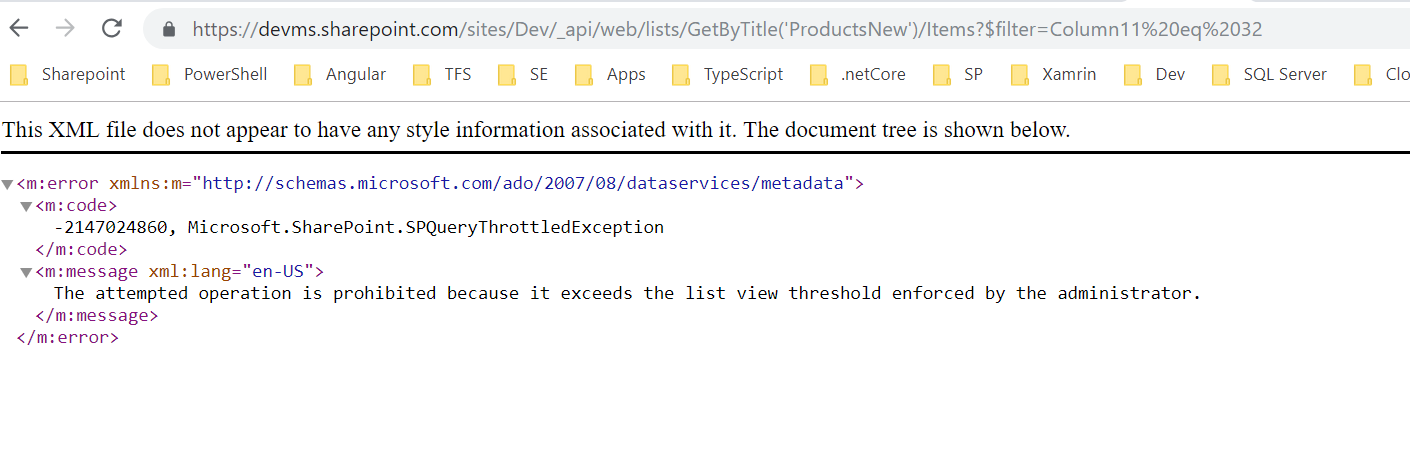
Below is the rest api query while i am trying to query a list which has 11,000 records and trying to filter with non indexed column which is throwing below error


In Order to overcome to above error, i went ahead and created an index for the column which i am querying 


Tuesday, 30 April 2019

SharePoint Online Update List item

SharePoint Online Update Rich Text Column html

We had a business requirement to remove/update the list items by removing unnecessary styles added at list item

Below is the code snippet which will loop through all the items and removes  strings  ex: data between style tags i.e all the styles between  <style> </style>

cls
Add-Type -Path "C:\Program Files\Common Files\Microsoft Shared\Web Server Extensions\16\ISAPI\Microsoft.SharePoint.Client.dll"
Add-Type -Path "C:\Program Files\Common Files\Microsoft Shared\Web Server Extensions\16\ISAPI\Microsoft.SharePoint.Client.Runtime.dll"

$UserName= "username@companyname.com"
$Password = "pwd"
$credentials= New-Object Microsoft.SharePoint.Client.SharePointOnlineCredentials($UserName,(ConvertTo-SecureString $Password -AsPlainText -Force))
$webURL="https://companyname.sharepoint.com/teams/sitename/"
$ctx= New-Object Microsoft.SharePoint.Client.ClientContext($webURL)
$ctx.Credentials = $credentials
$list = $ctx.web.Lists.GetByTitle("Resources")
$listItems = $list.GetItems([Microsoft.SharePoint.Client.CamlQuery]::CreateAllItemsQuery())
$ctx.load($listItems)
$ctx.executeQuery()

foreach($item in $listItems)
{

     try
    {
    $startIndex=$item["Overview_x0020_Text0"].IndexOf("<style>")
    $endIndex=$item["Overview_x0020_Text0"].IndexOf("</style>")
    If($startIndex -gt  0)
    {

    $newitem=$item["Overview_x0020_Text0"].Remove($startIndex,$endIndex+8)
    $item["Overview_x0020_Text0"]=$newitem
    $item.Update();
    Write-Host -ForegroundColor DarkGreen $item.Id   "Item Updated"
    }
     }
     catch
     {
       Write-Host -ForegroundColor Red  $item.Id "Item Not Updated"

     }
}

    $ctx.ExecuteQuery()


Friday, 1 March 2019

Email address empty after user profile synchronization


After user profile synchronization email address attribute is empty


To fix the issue


Start incremental sync which will resolve the issue

Monday, 21 January 2019

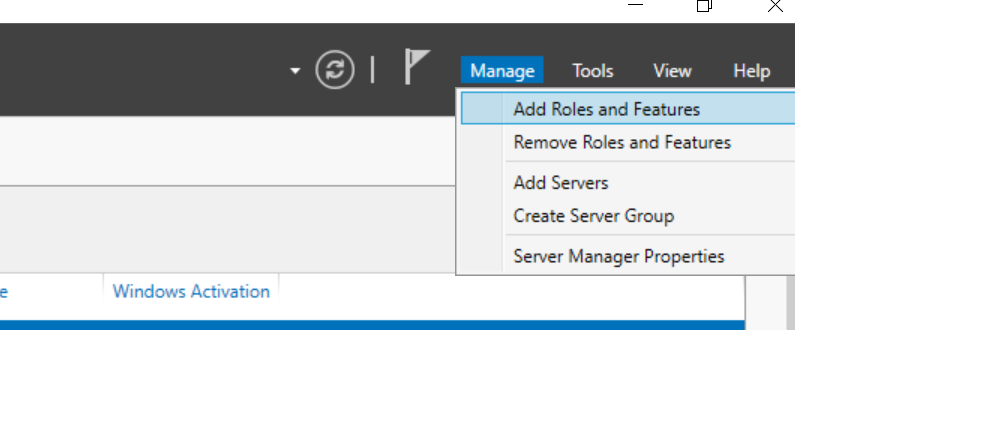
The Tool was unable to install Web Server(IIS) Role

SharePoint 2019 unable to install Web Server Role


The issue was due to .Net 3.5 framework was not installed, hence Follow the below steps


The sources file is on your Windows Server 2016 installation media, and you need to specify it and have it mounted
on your computer (or copied somewhere) for the prerequisite install to work properly

Make sure to replace the F:\sources\sxs to the actual path of your sources file.


Everything should work properly afterwards to run the prerequisite installer

Monday, 14 May 2018

Export User Subscribed Alerts to CSV PowerShell


Export Alerts to CSV file using PowerShell

cls

asnp "*sh*"

$web=Get-SPWeb http://msdev02dp:3636/

$alertCollection = @()

 foreach($alert in $web.Alerts)
{

$ExportItem = New-Object PSObject

$ExportItem | Add-Member -MemberType NoteProperty -name "UserName" -value $alert.User.DisplayName

$ExportItem | Add-Member -MemberType NoteProperty -Name "Email" -value $alert.User.Email

$ExportItem | Add-Member -MemberType NoteProperty -name "Title" -value $alert.Title

$ExportItem | Add-Member -MemberType NoteProperty -name "EventType" -value $alert.EventType

$ExportItem | Add-Member -MemberType NoteProperty -name "Frequency" -value $alert.AlertFrequency

$alertCollection += $ExportItem

}

  $alertCollection | Export-CSV "D:\Useralerts.csv" -NoTypeInformation


  $web.Dispose()


Saturday, 28 October 2017

Restore Deleted SiteCollection PowerShell

PowerShell Script to Restore Deleted SiteCollection from a Webapplication 


Get the Specific Webapplication ID  and use GetDeltedSites() method to to find out ID your deleted sitecollection and use Restore-SPDeletedSite command let to restore the sitecollection


cls


Add-PSSnapin "Microsoft.SharePoint.PowerShell"

$WebApplication = Get-SPWebApplication -Identity http://spdev2016:2626/

$restore = $WebApplication.GetDeletedSites()


Restore-SPDeletedSite  -Identity 1b0af67e-2f0d-413c-b8b7-9dec119dbc8c -WebApplication 7f1ac80d-d8fb-4a0a-9715-3865a4d139c5 -Confirm:$false 

Thursday, 5 October 2017

Remove Mantainance Mode of SharePoint Site

PowerShell Script to remove Maintenance of a site


cls

asnp "*sh*"

$Admin = new-object Microsoft.SharePoint.Administration.SPSiteAdministration('http://siteurl/’)

$Admin.ClearMaintenanceMode() 

Wednesday, 30 August 2017

SharePoint FrameWork Development EnvironmentSetup Set by Step

Follow the below steps to your SharePoint Framework Dev setup

1. Install Node.js first (node.js)

https://nodejs.org/en/ 

Open Powershell command window  check for installation and its version status of Node.js

npm -v


2. Install visual studio code

https://code.visualstudio.com/download 


3. Open Powershell command window and then install yeoman and gulp with below command

 npm install -g yo gulp


4. npm install @microsoft/generator-sharepoint -g


yoman is going to install all project scafoldings(creating project structure solution will be generated

gulp trust-dev-cert to install 

gulp serve 

Monday, 13 March 2017

CSOM TermStore GetTerms

CSOM Get Groups in TermStore/CSOM Get Termsets in TermStore/ CSOM Get Terms in TermSets


OutPut :


using System;
using System.Collections.Generic;
using System.Linq;
using System.Text;
using System.Threading.Tasks;
using Microsoft.SharePoint.Client;
using Microsoft.SharePoint.Client.Taxonomy;

namespace TermstoreCSOM
{
    class Program
    {
        static void Main(string[] args)
        {
            ClientContext ctx = new ClientContext("http://SPDev2013:3636/");
            ctx.Credentials = new System.Net.NetworkCredential("username", "pwd","domain");

            //Get the Taxanomy Session

            TaxonomySession tx = TaxonomySession.GetTaxonomySession(ctx);
            ctx.Load(tx, t => t.TermStores);
            ctx.ExecuteQuery();
           
            //Get the defualt TermStore from Taxonamy Session

            var ts = tx.TermStores[0];
            ctx.Load(ts);
            ctx.ExecuteQuery();
            Console.ForegroundColor = ConsoleColor.White;
           
            //Print the TermStore Name

            Console.WriteLine(ts.Name);

           //Get the Groups inside the Termstore

            TermGroupCollection groups = ts.Groups;
            ctx.Load(groups);
            ctx.ExecuteQuery();
            foreach( TermGroup group in groups)
            {
                Console.ForegroundColor = ConsoleColor.Yellow;
               
                //Print Each Group inside the TermStore

                Console.WriteLine("TermGroup is :" +group.Name);
               
                //Ge the Termsets inside the Each Group

                TermSetCollection termsetcollections = group.TermSets;
                ctx.Load(termsetcollections);
                ctx.ExecuteQuery();

                foreach (TermSet t in termsetcollections)
                {
                    Console.ForegroundColor = ConsoleColor.Green;

                    //Print Each Termset

                    Console.WriteLine("TermsetName is :" + t.Name);
                    ctx.Load(t);
                    ctx.Load(t.GetAllTerms());
                    ctx.ExecuteQuery();
                   
                    //Get All the Terms inside the TermSet

                    TermCollection terms = t.GetAllTerms();
                    ctx.Load(terms);
                    ctx.ExecuteQuery();
                    foreach (Term term in terms)
                    {
                       
                      Console.ForegroundColor = ConsoleColor.DarkCyan;
                          
                        //Print Each Term inside TermSet
                         
                        Console.WriteLine("Terms is :" + term.Name);

                    }

                }

            }
            Console.ReadKey();


        }
    }
}